
Timed Habits
Timed habits let you run a stopwatch right from the habit card, track elapsed time against a goal, and see a live countdown on your Lock Screen.
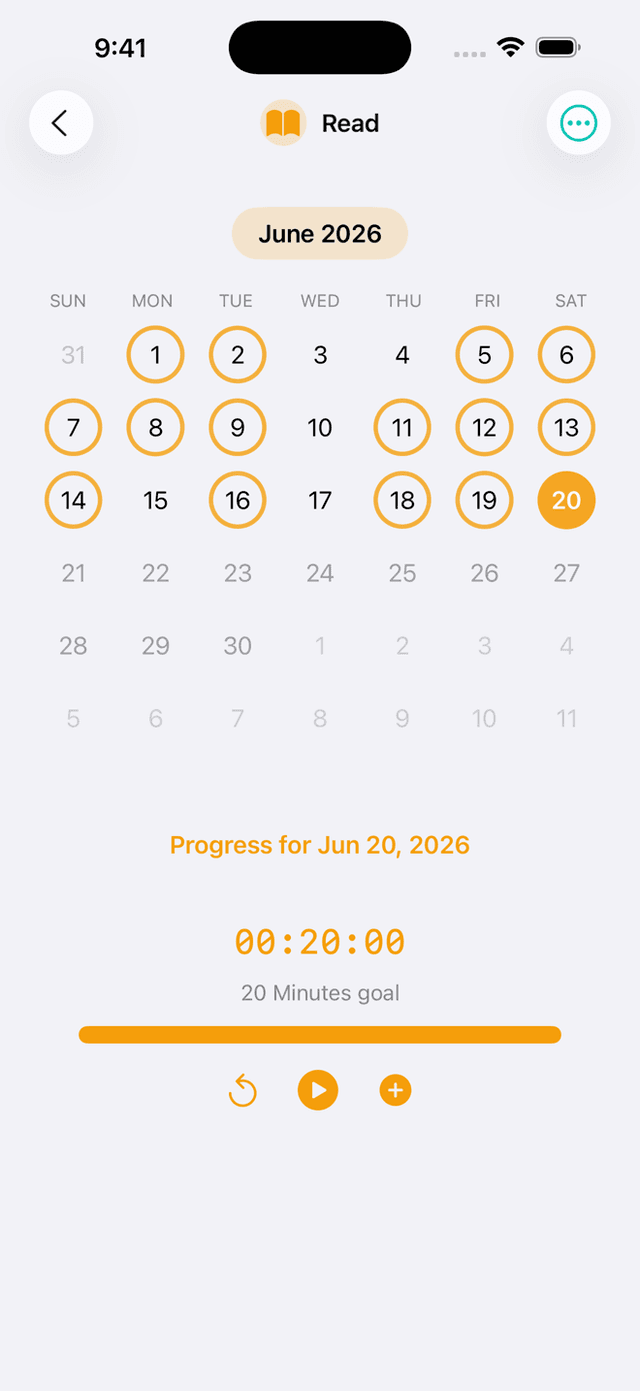
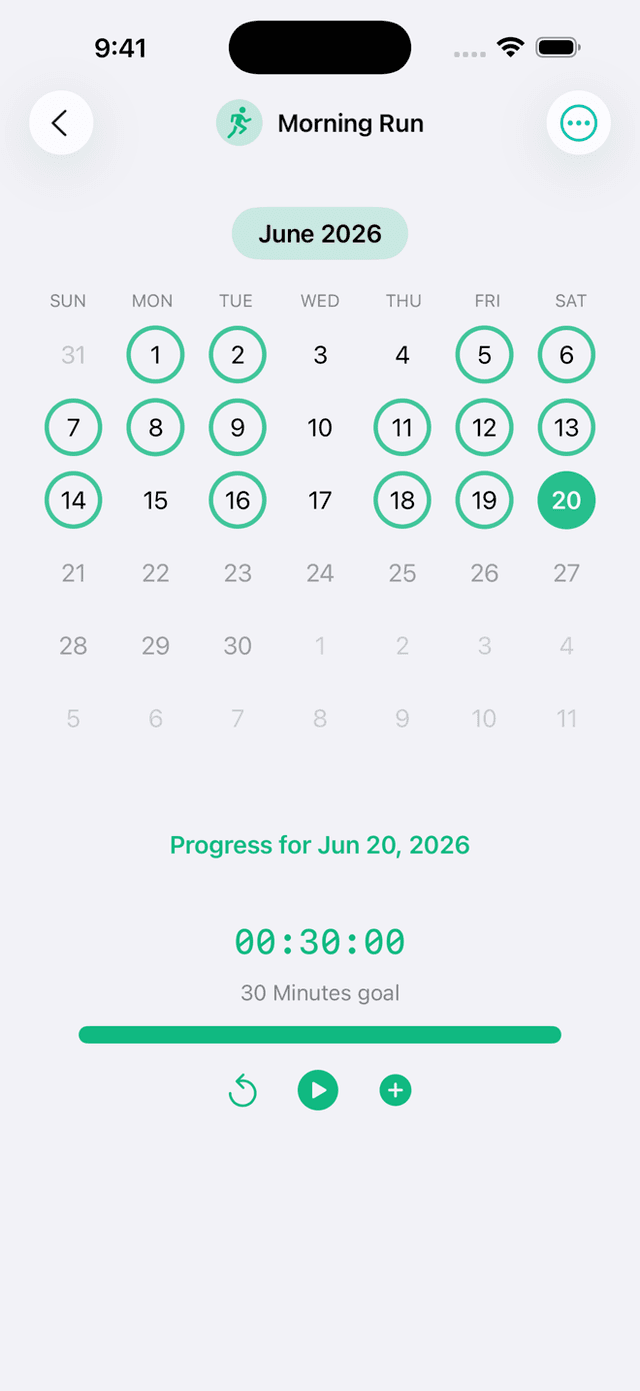
Setting up a timed habit
When creating or editing a habit, choose Timed as the tracking type. Then set a target duration (e.g., 30 minutes) and a unit — minutes or hours.
Starting and stopping the timer
On a timed habit's card, tap the ▶ Start button to begin. The card shows elapsed time in real time.
- Tap ⏸ Pause to pause without losing progress.
- Tap ▶ Resume to continue from where you left off.
- Tap ■ Stop to end the session. Elapsed time is saved as that day's progress.
You can navigate away from the Habits tab and the timer keeps running in the background.
Live Activity on the Lock Screen
While a timer is active, a Live Activity appears on your Lock Screen and in the Dynamic Island (iPhone 14 Pro and later). It shows:
- The habit name and icon.
- Elapsed time, counting up in real time.
- A progress ring towards your target duration.
Tap the Live Activity to jump straight back to Pilli. Live Activities require iOS 16.1 or later.
Completion
The habit is marked complete for the day once you stop the timer and the elapsed time reaches or exceeds your target. If you stop early, the partial time is still saved and shown in the grid — but the day isn't counted as complete until the goal is met.
Tips
- Timed habits work well for meditation, exercise, reading, or any goal measured in minutes rather than a fixed count.
- If you accidentally stop too soon, start the timer again — time accumulates within the same day.
- The Lock Screen Live Activity clears automatically when you stop the timer.