
Widgets
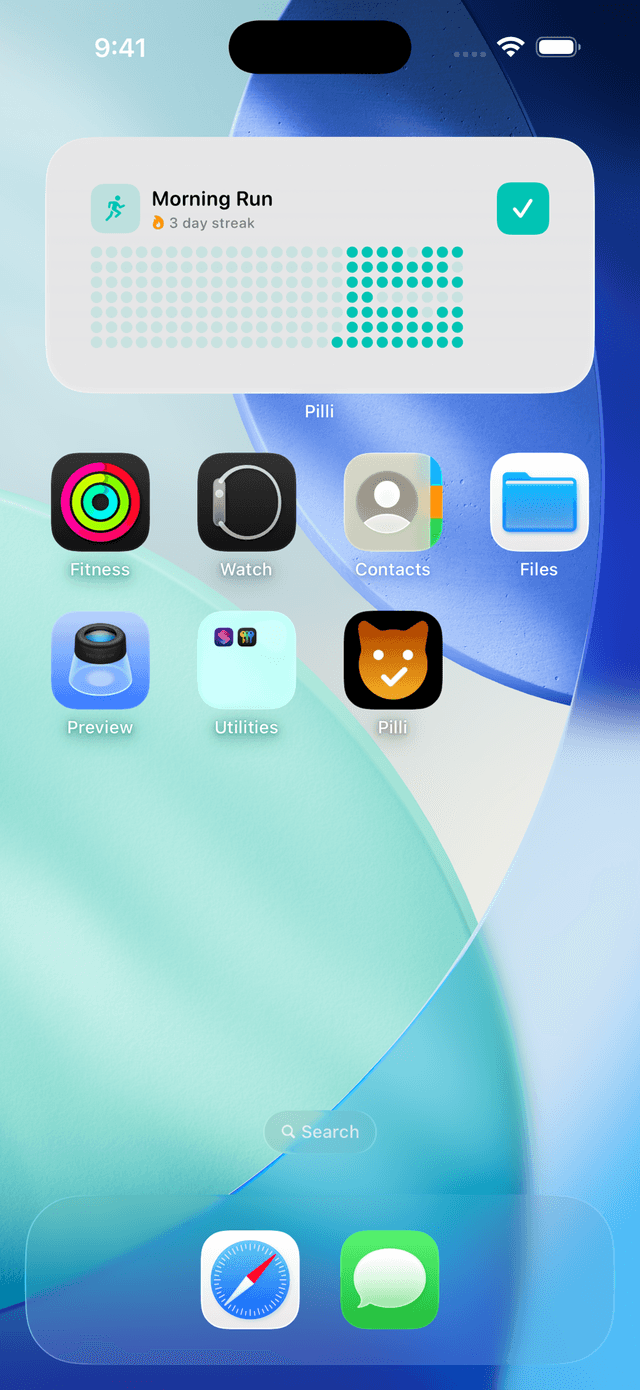
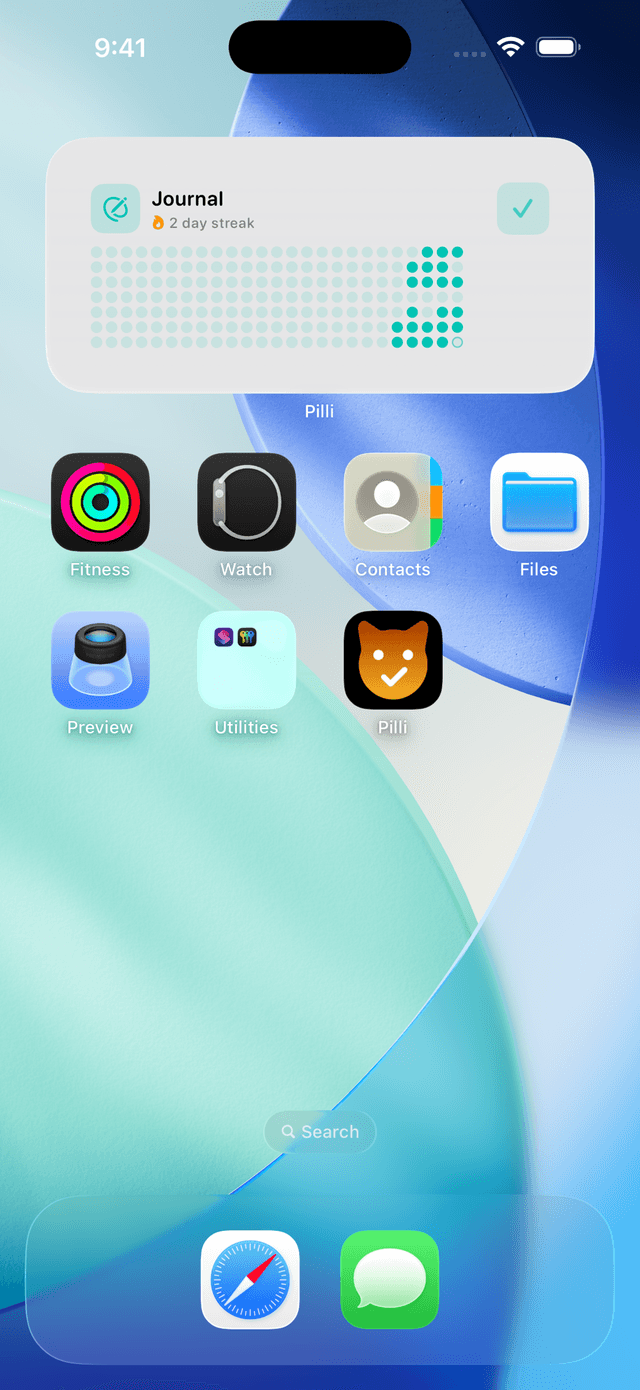
Pilli offers Home Screen widgets so you can track and complete habits without opening the app.
Adding a widget
- Long-press an empty area of your Home Screen until the icons start jiggling.
- Tap Edit in the top-left corner, then tap Add Widget.
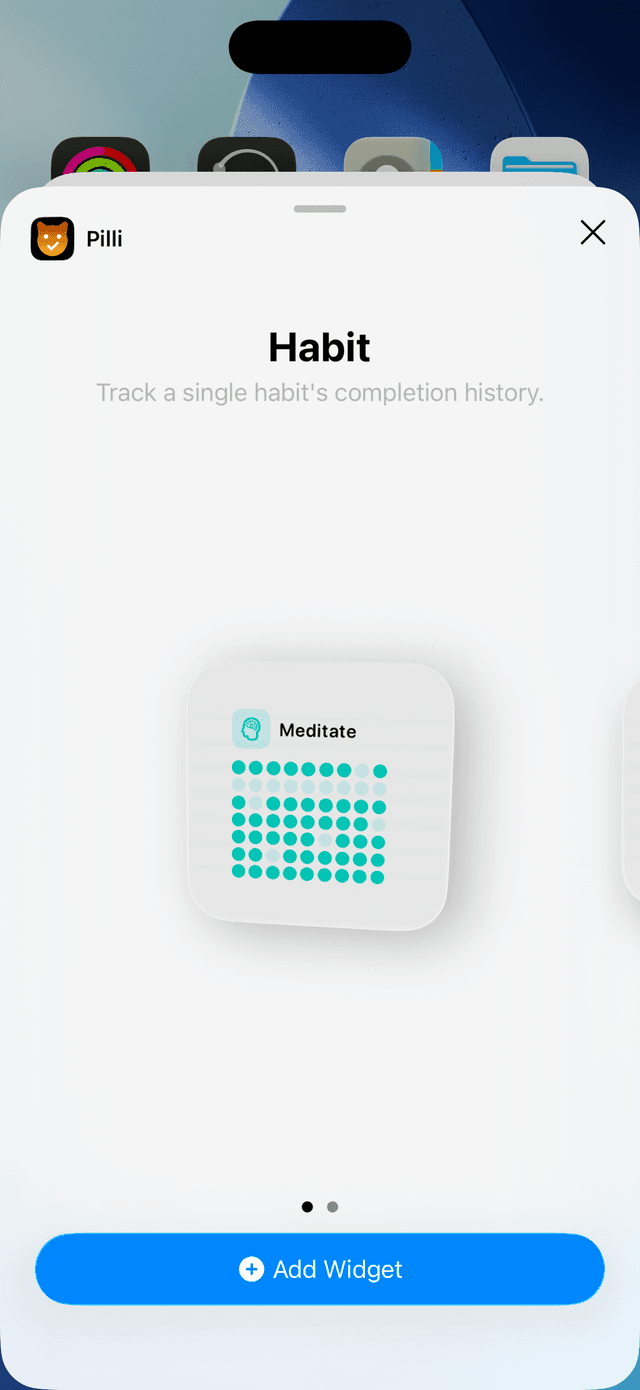
- Search for Pilli and tap it.
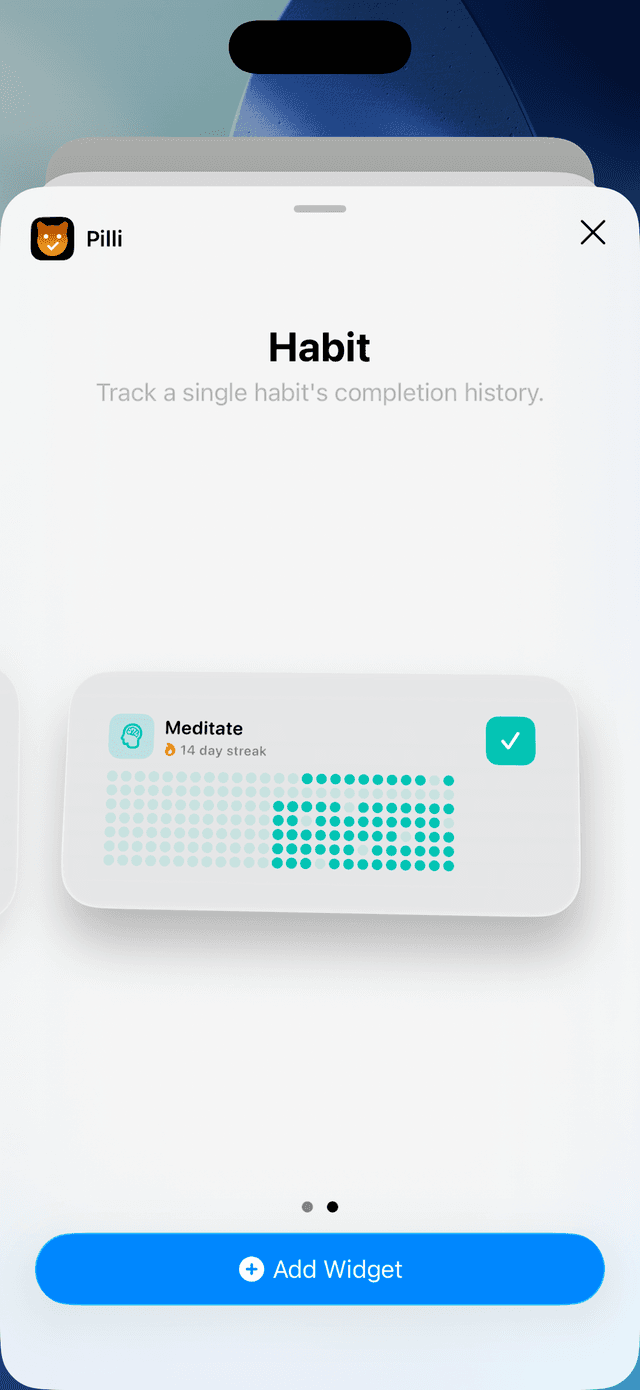
- Swipe left or right to choose a widget size, then tap Add Widget.
- Tap Done.
Home Screen — Small widget
Shows a single habit's completion heat map for the last 49 days (7 columns × 7 rows). Each dot represents one day — filled dots are completed days.
Tap the widget to open that habit's detail view directly in Pilli.
Home Screen — Medium widget
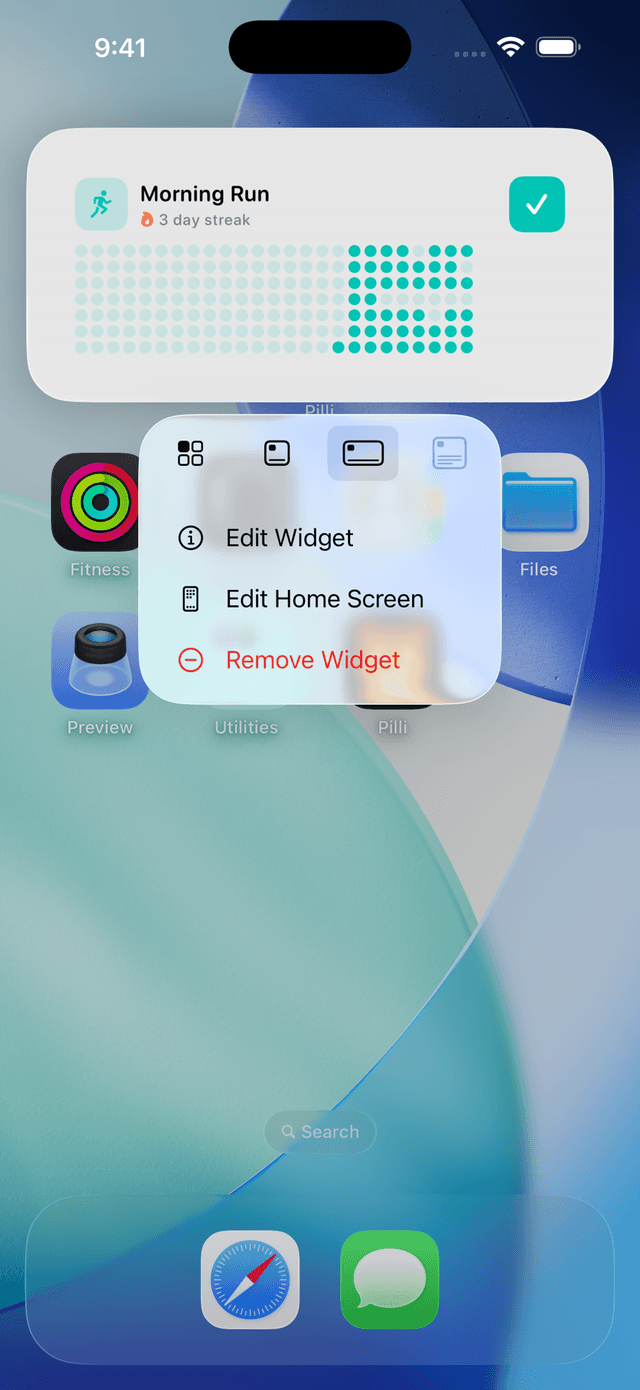
Shows the same heat map covering the last 91 days (13 columns × 7 rows), plus:
- The habit's name, icon, and current streak.
- A one-tap completion button on the right — tap it directly from the Home Screen to mark the habit done for today without opening Pilli.
Configuring a widget
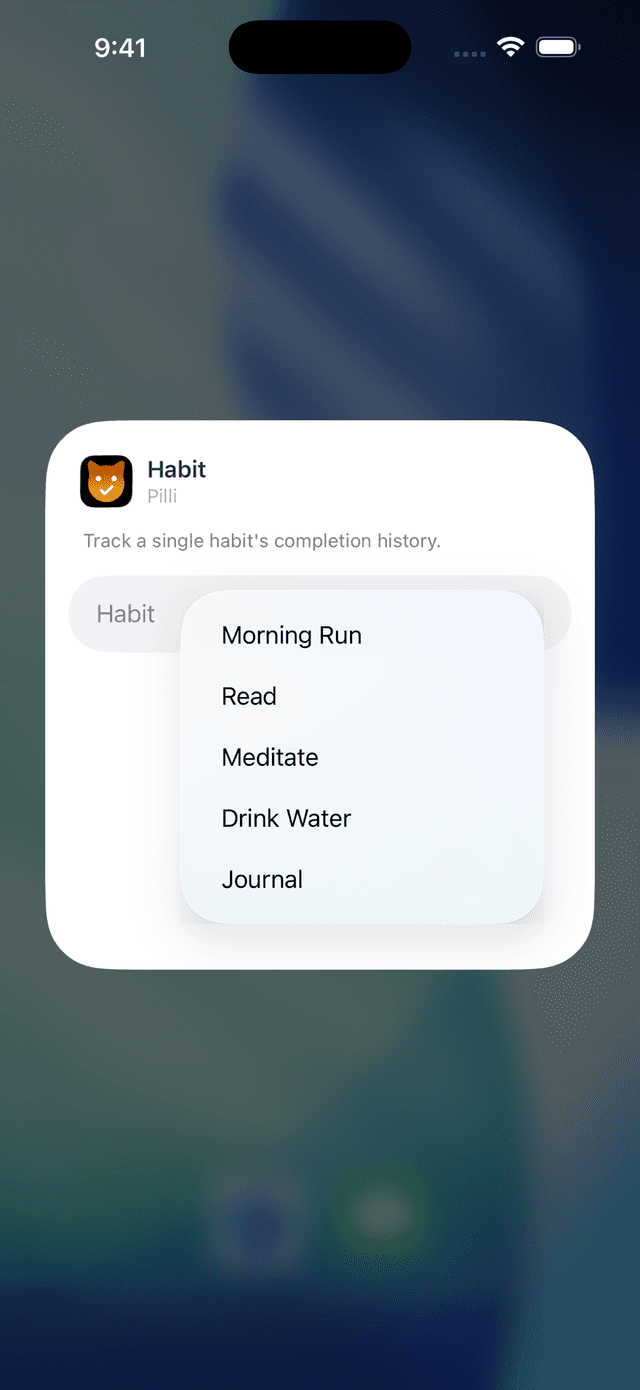
Each widget can be set to track a specific habit. To change which habit a widget shows:
- Long-press the widget on your Home Screen.
- Tap Edit Widget from the menu that appears.
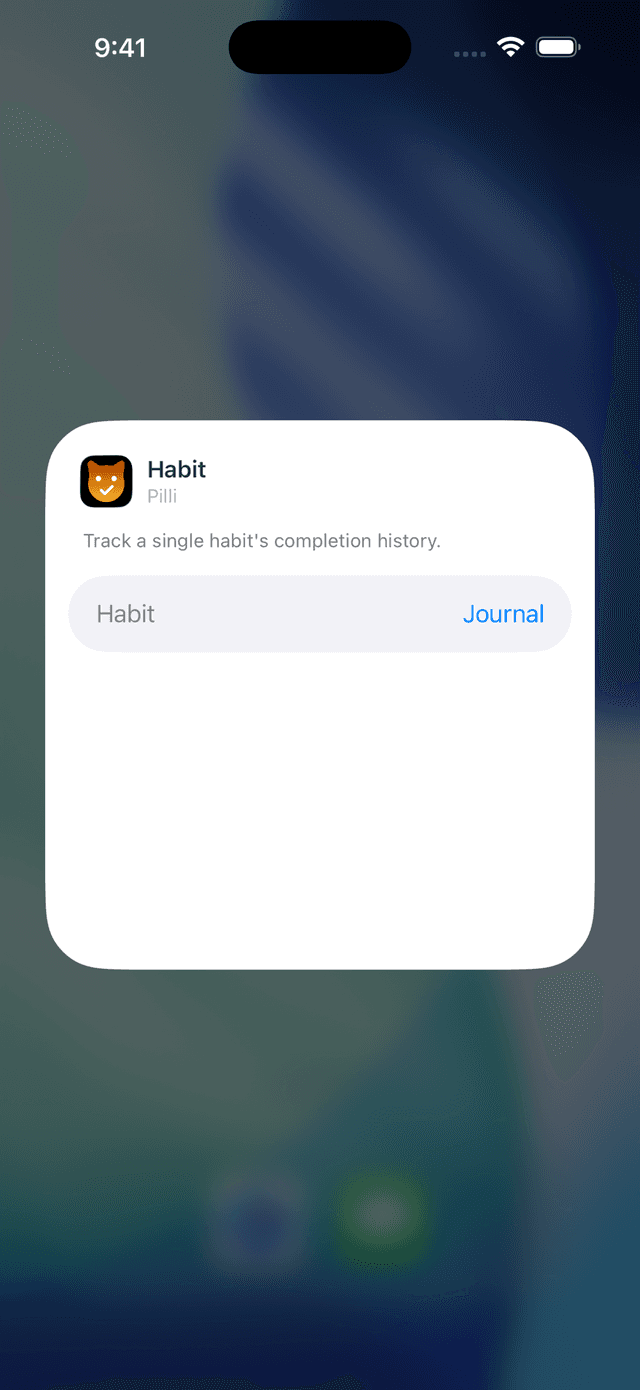
- Tap Habit and choose from your list.
- Tap anywhere outside the card to save.
You can add multiple widgets — one per habit — and arrange them anywhere on your Home Screen or stack them. Each instance remembers its own habit selection.
Lock Screen widgets
Pilli adds three types of Lock Screen widgets that show your overall daily habit progress at a glance. Unlike Home Screen widgets, these are not configurable per habit — they always reflect all your habits for today.
- Circular — a ring gauge filling as you complete habits, with a count in the centre.
- Rectangular — shows "X / Y habits today" and lists up to two remaining habits by name.
- Inline — a single line of text ("X/Y habits") above the clock.
To add one: long-press your Lock Screen → Customise → tap the Lock Screen → tap a widget slot → find Pilli → tap Done. Lock Screen widgets require iOS 16 or later.
Keeping widgets up to date
Widgets refresh automatically when you open Pilli and at midnight each day. If a widget looks stale after completing a habit, open Pilli briefly — it will push fresh data and the widget will update within seconds.
Tips
- Use the medium widget for habits you want to complete directly from the Home Screen with a single tap.
- Stack multiple small widgets in a Smart Stack (long-press → Stack) so they rotate automatically throughout the day.
- The widget accent colour matches the accent you set in Settings → Theme.