
Building Habits
Everything you need to know about creating and configuring habits in Pilli.
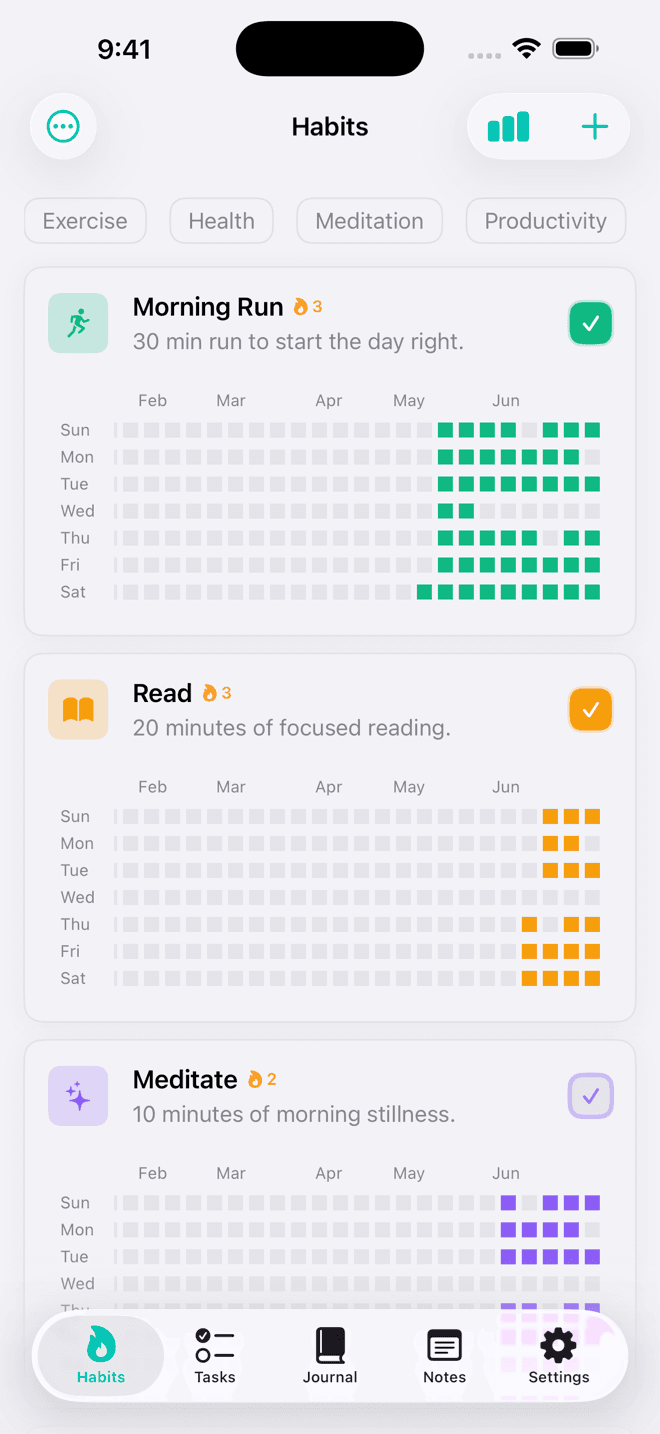
Creating a habit
Tap the + button on the Habits tab to open the habit creator. Give your habit a name, pick an icon, and choose the schedule and tracking type that fits your goal.
Schedules
Pilli supports three repeat schedules:
- Daily — the habit appears every day. Miss a day and your streak resets.
- Weekly — set a target number of days per week (e.g., 3×/week). You choose which days. A week counts as completed when you hit the target before Sunday ends.
- Monthly — pick specific calendar days (e.g., the 1st and 15th). Only those days appear on your grid.
Tracking types
Each habit tracks progress in one of two ways:
- Count — tap a number (e.g., 8 glasses of water). A single tap marks +1; long-press opens a custom entry sheet.
- Timed — run a stopwatch directly from the habit card. Learn more about timed habits →
Categories
Assign one or more categories to a habit (Health, Fitness, Mindfulness, etc.) to filter the list and keep things organised. You can create custom categories in Habits → ⋯ → Manage Categories.
Reminders
Add one or more reminders to a habit so Pilli sends a notification at the times you choose. Reminders are local — they never leave your device.
Archiving vs deleting
Archiving a habit hides it from the main list but keeps its entire history intact. Deleting a habit is permanent and cannot be undone. Use Archive when you want to pause a habit and come back to it later.
Habit order
Tap ⋯ → Reorder to drag habits into any order. That order is saved and will persist across launches.
Card preferences
Tap ⋯ → Preferences to customise how habit cards look — toggle the description, streak badge, weekday labels, and grid shape.